
PDXpert PLM Software
Application Notes
Compare bills of materials using Excel
Last update 2020-08-19
This applies to older PDXpert releases without PDX package export capabilities.
Current PDXpert releases include the ability to export a complete product structure (parts, BOM, approved sources, file attachments, change forms, etc.). Our free PDXplorer PDX Viewer can open change form PDX packages, which show revised BOMs, sources, and files using Add/Remove/NoChange labels. Also, PDXpert 12.0 (and later) includes an example "Export Pending BOM Compare" custom transform.
For more information about PDX package comparisons, see:BOM compare 2.0: Compare all product data, not just the BOM
PDXpert software can manage bills of materials, and export these as Microsoft Excel spreadsheets. Similar bills of materials ("BOMs") are often created to describe similar assemblies or evolutionary revisions of the same assembly. While comparing different BOMs is a frequent task, the work remains tedious because part lists can be long and complex, and BOM differences are often subtle.
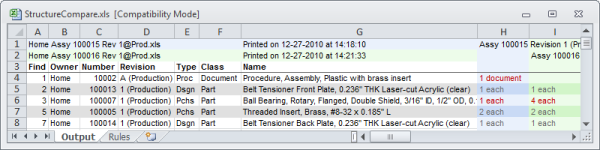
The Excel workbooks described in this article compare multiple Excel or CSV files. They identify each bill of material's unique set of components and highlights differences between assemblies. A Rules worksheet defines default values (e.g., up to 10 files compared), working parameters (such as source data file location), and font format properties.
The two styles of BOM comparison tools handle released bills of materials differently.
- The Structure Comparison spreadsheet identifies differences between 2 or more single-level bills of materials as referenced by the FIND number of each row. FIND rows provide an anchor between item revisions, and various items can be assigned to a specific FIND location. This BOM comparison tool includes both parts and documents.
- The Pick List Comparison spreadsheet can be used to comparesingle- or multi-level ("indented") bills of materials based on a sorted list of unique part numbers. This Pick List ignores the FIND anchors for the assembly and, if any, lower-level subassemblies. It includes only components, not intermediate assembly part numbers that are constructed from these components. This BOM comparison tool includes only part records; differences in documentation are not identified.
Create this workspace for comparing your bills of materials:
Using Windows Explorer, identify a convenient folder for your comparison workspace. Let's call this the\\Working folder.
Create a folder immediately under your \\Working folder called\\Compare, so you now have a folder\\Working\\Compare
To compare single-level released bills of materials based on their FIND numbers:
Download theStructure-Compare.xls file and save it in the \\Working folder.
If your computer cannot download and save an Excel .XLS file, you can download and then unzipPDXpert-BOM-compare.zipinstead.
Within the PDXpert client:
For each released item, search for the item using the PDXpert Item Explorer, and open it.
Click on the item's Structure tab.
On the Current tab, right-click on a child item to display the context menu. SelectShow Tab Report and wait for theTab Report window to open.
Along theTab Report window's toolbar, click on the Save As (floppy disk) icon, and select Excel from the dropdown list.
Save the tab report file in your working folder's \\Compare subfolder (like \\Working\\Compare).
After all the tab report files have been saved, open the Structure-Compare.xls file in Excel. Run the macro ThisWorkbook.ProcessStructureFiles (you may need to enable macros; for instructions, search for "enable macro" in the Excel Help file).
To compare single- or multi-level released bills of materials based on their part numbers:
Download thePick-List-Compare.xls file and save it in the \\Working folder.
If your computer cannot download and save an Excel .XLS file, you can download and then unzipPDXpert-BOM-compare.zipinstead.
Within the PDXpert client:
For each released item, search for the item using the PDXpert Item Explorer, and open it.
Click on the item's Structure tab.
On the Current tab, right-click on a child item to display the context menu. SelectPick List and wait for thePick List window to open.
Along thePick List window's toolbar, click on the Save As (floppy disk) icon, and select Excel from the dropdown list.
Save the pick list file in your working folder's \\Compare subfolder (like \\Working\\Compare).
After all the pick list files have been saved, open the Pick-List-Compare.xls file in Excel. Run the macro ThisWorkbook.ProcessPicklistFiles (you may need to enable macros; for instructions, search for "enable macro" in the Excel Help file).
The previous data in the files' Outputworksheets is always cleared as part of a new run. If you need to save the current copy of your spreadsheet, do so before running another comparison.
Before each run, ensure that your \\Compare subfolder (\\Working\\Compare) always contains only those files that you want to compare in the appropriate format.
These tools are only useful with released bills of materials; applying them to pending structures may not produce useful results.
This application note was relevant to the PDXpert software release that was current at time of publication. Product changes since that time may affect its utility. We'd be happy to assist you in assessing the applicability of this note to your situation.