
PDXpert PLM Software
Application Notes
Adding a custom SQL Server report to PDXpert
Last update 2017-04-10
For PDXpert 12.0 and later, see theReport2 version application note.
These instructions apply to PDXpert PLM server software PDXpert release 8.0 through 11.2. PDXpert releases before 8.0 are similar, but use the SQL Server 2005 report definition.
This is an advanced topic. You must be familiar with Microsoft's SQL Server query language, and know how to use Microsoft development tools like Visual Studio and SQL Server Management Studio.
Other reporting options include SQL Server Reporting Services (SSRS) and Microsoft Access, as well as third-party tools like Altova, BusinessObjects, or Domo. If you're familiar with SQL query language, you can export data in a CSV file, as discussed in theData Transformations collection'sSQL transformationstopic. Of course, we can also create custom reports for you.
The Report/Export Wizard tool runs a custom report defined by a data transformation. The data transformation contains a SQL Server database query and a modified SQL Server Report. This application note describes how to add the SQL query and report RDLC code to a new data transformation.
Within a data transformation<Definition> element, the<dataquery> creates the report data and the<Report> defines its layout. The <Provider> element is a constant that identifies all report transformations.
XML names are case-sensitive. Use elements names exactly as shown.
<Definition>
<dataquery xmlns="http://www.plmx.org/DataQuery.xsd">
...SQL query elements...
</dataquery>
<Report xmlns="http://schemas.microsoft.com/sqlserver/reporting/2008/01/reportdefinition" >
...RDLC report elements...
</Report>
<Provider>f61035e0-a334-4978-909b-b4d4733c7654</Provider>
</Definition>
The dataquery element is usually created using SQL Server Management Studio (SSMS). After you develop the report's SQL code in SSMS, copy it into the data transformation's XML.
The dataquery contains three objects:
- The report dataset's SQL query is contained within a CDATA[ ] element. For example:CDATA[SELECT * FROM ItemView].
- The query result name (such asDataSet1) is used during the report development within Visual Studio.
- An optional parameterized="true" attribute indicates that one or more items are selected by the user. Excluding this runs the report against the complete database. For details, see the help file topicParameterized SQL queries.
<dataquery parameterized="true" xmlns="http://www.plmx.org/DataQuery.xsd">
<choice>
<sql name="DataSet1">
<![CDATA[
...SQL query...
]]>
</sql>
</choice>
</dataquery>
The Report element is a modified version of the XML.rdlc file created using Visual Studio.
After you develop the report's RDLC code in Visual Studio: (1) copy it into the data transformation's XML, and (2) edit it according to the instructions below.
Do not include the <?xml version="1.0" encoding="utf-8"?> from the RDLC file.
Find the <Page> element to define
- the PageHeight and PageWidth to determine page orientation (landscape or portrait);
- the top, bottom, left and right margins; and
- empty PageHeader and PageFooter elements, which are filled by the Report/Export Wizard. These elements are required, but their content is always ignored. Non-empty elements may affect the page layout, so it's better to ensure they're always empty.
A <Page> section, with landscape (wide) orientation, might look like:
<Page>
<PageHeight>8.5in</PageHeight>
<PageWidth>11in</PageWidth>
<PageHeader></PageHeader>
<PageFooter></PageFooter>
<LeftMargin>0.5in</LeftMargin>
<RightMargin>0.5in</RightMargin>
<TopMargin>0.64in</TopMargin>
<BottomMargin>0.64in</BottomMargin>
<Style />
</Page>
The same name is used within the <DataSources> and<DataSet> elements. Assign this name to the query <sql name="{dataset name}"> within the <dataquery> section (above).
This example usesSQL Server Management Studio (SSMS), Visual Studio 2015 Community Edition (VS2015) installed with the Microsoft SQL Server Data Tools (SSDT) option, and the Microsoft Report Viewer 2015 Runtime (RV2015).
In SSMS, develop and validate the SQL query.
This example SQL query lists all home organization parts' release status, as well as their released or canceled iteration (if none, then it lists the pending iteration).
SELECT
[Number]
,[Type]
,[Description]
,'Rev ' + Coalesce(Revision,PendingRevision) + ' @ ' + Coalesce(Lifecycle,PendingLifecycle) AS [Iteration]
,CASE
WHEN IsCanceled=1 THEN
CASE
WHEN PendingRevID IS NULL THEN 'Canceled'
ELSE 'Canceled+Pending'
END
WHEN PendingRevID IS NULL THEN 'Released'
WHEN RevID IS NULL THEN 'Pending'
ELSE 'Released+Pending'
END AS [Status]
FROM
[viewer].[ItemView]
WHERE
[Class]=1 AND [IsHomeItem]=1
ORDER BY
[Number], [Type]
In SQL Server Management Studio, the query result is:
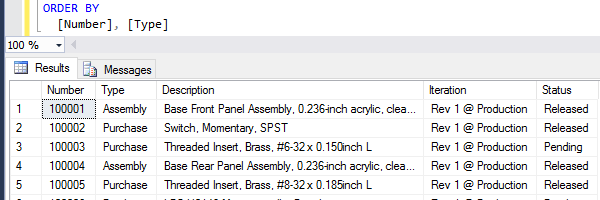
This SQL query is used for
- The RDLC report's DataSet1 and will be saved within theDataSet1.xsd file.
- Your new Data Transformation text file as shown:
<Definition>
<dataquery xmlns="http://www.plmx.org/DataQuery.xsd">
<choice>
<sqlquery>
<sqlname="DataSet1"><![CDATA[
SELECT
[Number]
,[Type]
,[Description]
,'Rev ' + Coalesce(Revision,PendingRevision) + ' @ ' + Coalesce(Lifecycle,PendingLifecycle) AS [Iteration]
,CASE
WHEN IsCanceled=1 THEN
CASE
WHEN PendingRevID IS NULL THEN 'Canceled'
ELSE 'Canceled+Pending'
END
WHEN PendingRevID IS NULL THEN 'Released'
WHEN RevID IS NULL THEN 'Pending'
ELSE 'Released+Pending'
END AS [Status]
FROM
[viewer].[ItemView]
WHERE
[Class]=1 AND [IsHomeItem]=1
ORDER BY
[Number], [Type]
]]></sql>
</sqlquery>
</choice>
</dataquery>
<Report>...RDLC report elements will be added here...</Report>
<Provider>f61035e0-a334-4978-909b-b4d4733c7654</Provider>
</Definition>
Since this SQL statement queries the entire database, it doesn't include theparameterized="true" attribute. It's OK if your file's XML whitespace (spaces and tabs) is different, such as how the SQL query is indented.
Design the report in Visual Studio:
Select File menu,New ► Project…
On the New Project window, selectInstalled > Visual C# > Windows, and then aWindows Forms Application. Name the project (let's say, PDXpertReportDesign), and click the OK button.
In the Solution Explorer, Add ► New Item… to the project.
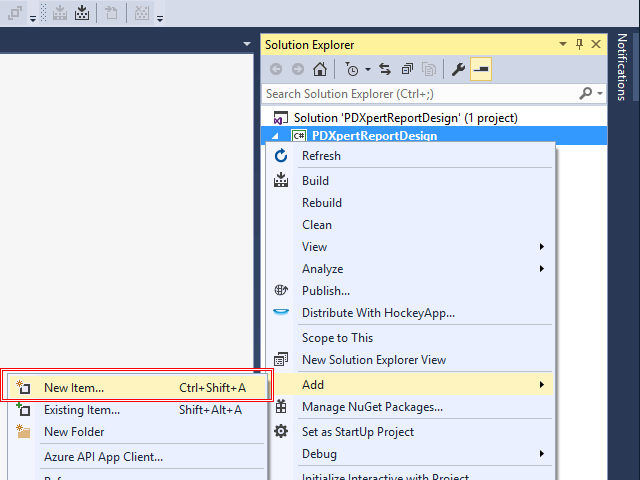
On the Add New Item window, selectVisual C# Items > Data > DataSet. Name the dataset (say, DataSet1), and click the Add button. A newDataSet1.xsd document opens.
In the Toolbox DataSet tools list, locate the TableAdapter and drag it onto the DataSet1.xsd document.
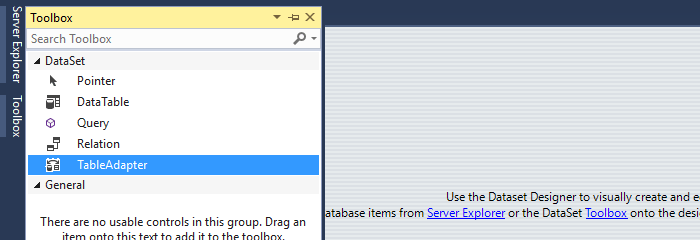
The TableAdapter Configuration Wizard opens. Set up the data connection to the PDXpertDB database. Click Next >.
If you wish, save the connection string. ClickNext >.
Set the TableAdapter database access to Use SQL Statements. ClickNext >.
Enter your SQL query (above) into the What data should be loaded into the table? textbox. ClickFinish. Save the DataSet1.xsd content.
In the Solution Explorer, Add ► New Item… to the project.
On the Add New Item window, selectVisual C# Items > Reporting, and then eitherReport or Report Wizard. Name the report (for example, HomePartsList.rdlc), and click the Add button. A newHomePartsList.rdlc document opens.
Add the report's dataset to the RDLC document.
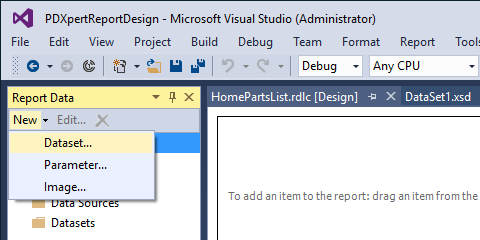
In the Dataset Properties window, select your dataset (DataSet1) from theData source: dropdown, and clickOK.
Designing a report is beyond the scope of this application note. Refer to Microsoft's documentation for details.
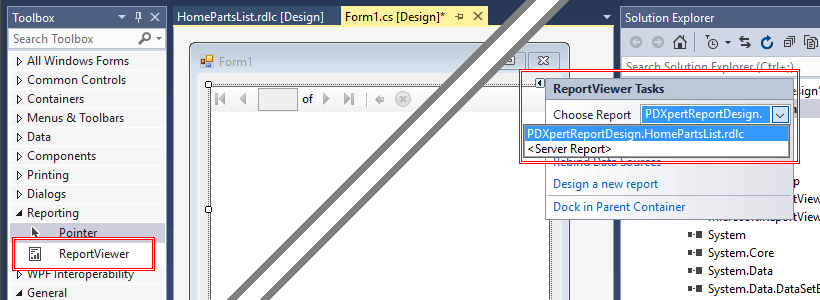
After designing the report, expand the new Form1.cs window to allow the full width of your designed report. From the Toolbox, add and dock aReporting > ReportViewer control to Form1. In the ReportViewer Tasks control, select your report in the Choose Report dropdown list.
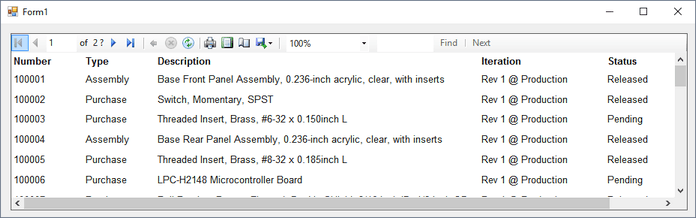
Start the project to test your report.
In your PDXpert data transformation file, update the <Report> section using the RDLC file created by Visual Studio (in our example,HomePartsList.rdlc).
Do not include the <?xml version="1.0" encoding="utf-8"?> from the RDLC file.
See the Home Parts List data transformation file.You can add this as a new member of the Data Transformations collection.
If your report's SQL query refers to any custom attributes, changing a custom attribute name within the Collection Explorer requires a similar update to the related Data Transformation(s).
Microsoft offers many different tools and methods for creating reports. Refer to Microsoft's documentation for more instructions and options.
- Report Designer (Visual Studio)
- Creating Client Report Definition (.rdlc) Files
- SQL Server RDL Specification
For more information on querying the PDXpert database and creating a data transformation, see these PDXpert help topics
- How to report, import & export > View & export via ODBC > View database objects (on line)
- Collections reference > General > Data transformations (on line)
This application note was relevant to the PDXpert software release that was current at time of publication. Product changes since that time may affect its utility. We'd be happy to assist you in assessing the applicability of this note to your situation.