
PDXpert PLM Software
Application Notes
Using Cadence OrCAD Capture CIS with the PDXpert server
Last update 2018-03-02
PDXpert provides a centralized repository of your part and document data, including management of approved supplier sources, bills of materials, revisions, and engineering changes. A "live view" of your part and supplier data is available from the Microsoft SQL Server database via an ODBC connection.
This note outlines the method for using PDXpert PLM software's server-side views to support OrCAD Capture CIS's component libraries.
Applies to PDXpert PLM server software release 7.0 and later.
This demonstrates OrCAD's use of the Microsoft SQL Server database. Using the client-side SQLite database requires PDXpert release 9.1 or later; see theOrCAD CIS client-side application note.
- PDXpert PLM software support for printed circuit board (PCB) design
- Deciding how to connect OrCAD Capture CIS to the PDXpert database
- Creating custom attributes for OrCAD Capture CIS
- Exploring PDXpert software's public database views
- Creating user-defined views using the public views
- Connecting OrCAD Capture CIS to the PDXpert database
- Final comments
PDXpert PLM software is built on the Microsoft SQL Server database engine, which provides powerful, scalable data management capabilities. Data records within the PDXpert database can be accessed using a stable database view using an ODBC connection. In addition to basic part and document attributes, PDXpert offers published read-only views that include custom attributes, qualified component sources and even bill of materials parent/child lists.
Product data is contained in the server machine's Microsoft SQL Server database, and a subset can be enabled on the client workstation. Server-side views provide a richer and more flexible view of your product data than client-side views.
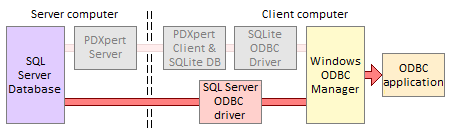
Advantages of using SQL Server on the server computer:
- All queries are processed by SQL Server, which can use multiple concurrent processes.
- Data obtained from the server has no refresh delay.
- All public views (not just the SQLite-compatible subset) can be used in queries.
- Queries can use SQL Server's full range of built-in data manipulation functions.
- Table column names are somewhat more flexible for Custom Attribute names.
- The local workstation doesn't require an active PDXpert client to obtain current data.
- SQL Server offers powerful development tools with better documentation, support and complementary products.
By assigning appropriate custom attributes to PDXpert part type templates, components managed within PDXpert can support external computer systems. In particular, attributes required by OrCAD Capture CIS — such as component values, schematic symbols, layout footprints and source part numbers — can be created and managed within the PLM system.
For more information about PDXpert's ODBC views, refer toContents > How to report, import & export > Using ODBC for export in the PDXpert help guide.
Your PDXpert Server may use SQL Server Express LocalDB, which improves database security byblocking all remote connections. You can confirm whether PDXpert uses SQL Server Express LocalDB by looking on the PDXpert Server's Information tab, in theSQL Server textbox, for the word LocalDB.
To allow your CAD tool to read the database,install SQL Server Express (or higher). After installation, use the PDXpert Application Server's Change Database Server button to move the existing database into the new instance.
SQL Server's TCP/IP protocol must be enabled, and the firewall and antivirus on both client and server computers must allow connections to SQL Server.
There are several alternatives for attaching the OrCAD Component Information System (CIS) electronic CAD application to PDXpert's SQL Server database.
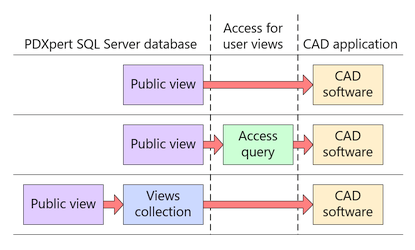
Connect OrCAD CIS directly to the PDXpert public views.
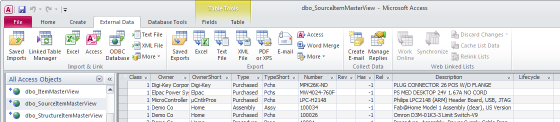
From within Microsoft Access (or similar tool), link the PDXpert public view(s) as an ODBC external data source. Create the queries required by OrCAD CIS and then attach OrCAD to these derived library views.
Create PDXpert Views collection member(s), which overlay the PDXpert public database views, using SQL Server Management Studio (SSMS). The views appear as normal tables to OrCAD CIS.
If you're comfortable using SSMS to access a SQL Server database, this approach is powerful, flexible and simple to maintain. SSMS is included with higher-end versions of SQL Server, and a free Express version can be downloaded from the Microsoft website.
Before connecting OrCAD CIS to the PDXpert database, you'll first need to define custom attributes to support its component libraries.
Parts in the PDXpert database have many standard attributes like part owner, type, number, description, unit of measure, and cost; these should not be duplicated in the custom attributes.
Each PDXpert part can include an approved set of supplier parts on theSources tab. These sources are brought into the SourceItemMasterView (or can be derived from other public views), so you should not create custom attributes that duplicate the part's source data.
Where different part types have identically-named custom attributes, these will be merged into a single column. For example, if yourResistor and Capacitor part types both have a custom attribute namedValue, the resistor value (say,22K) and capacitor value (say,10nF) are merged into the view's single Value column.
Read the PDXpert help topic Contents >Collections reference > Custom attributes to learn about naming and managing custom attributes.
You have some choices in how you define new part types:
- If you want a small set of attributes that are shared across all items (e.g., Category, Value, Tolerance, Rating, Symbol, Footprint, Datasheet), then these can be created within a single PDXpertPart Types collection member, say Purchase. The Category would be the selector for your OrCAD CIS libraries. This is a useful complement to non-significant part numbering.
- You can also create a series of PDXpert part types, each of which can have both common attribute names (like Value, Symbol, Footprint) as well as unique attributes (Rating, Tolerance, Dissipation, Gate Count, Forward Drop, etc.). If you're using category-based part number prefixes, then you may already have many of the types defined.
- Your supplier part types can be matched exactly to your own parts' types (supplier resistors use the same Resistor part type as your own resistors). However, the source's custom attributes would have limited value, since they'd mirror your own part's custom attributes. On the other hand, your supplier parts could be created from a common Source part type with its own set of custom attributes (like a link to the supplier's website or datasheet).
Part properties in OrCAD CIS can be mapped to standard and custom attributes within PDXpert software.
For more information about OrCAD property requirements, refer to the OrCAD CIS Users Guide, "Determining part properties" section.
For information about PDXpert software's ODBC views, refer to the help guideContents > How to report, import & export >Using ODBC for export >ItemMasterView column reference and > SourceItemMasterView column reference topics.
| OrCAD property (note 1) | Required | PDXpert ODBC column |
|---|---|---|
| Part Number | Yes | [Number] |
| Part Type | Yes | [Type] or[TypeShort] (note 2) |
| Schematic Part (Symbol) | Yes | custom attribute |
| Value | Yes | custom attribute |
| Availability | No | custom attribute (note 3) |
| Data Sheet | No | source part's custom attribute, like [datasheet_1](note 4) |
| Description | No | [Description] |
| Distributor | No | source part's [Owner_n] or[OwnerShort_n] (note 4) |
| Distributor Part Number | No | source part's [Number_n] |
| Manufacturer | No | source part's [Owner_n] or |
| Manufacturer Part Number | No | source part's [Number_n] |
| PCB Footprint | No | custom attribute |
| Price | No | [CostPerUnit] (note 3) |
| Rating | No | custom attribute |
| Tolerance | No | custom attribute |
Notes:
- Of course, you can add more attributes, and the names, schemes and default values may differ from attributes in this example. For simplicity, all custom attribute schemes are defined asData:String
- You can also group items with similar characteristics into shared PDXpert part types ("Capacitor"), and a custom attribute can define subtypes ("Ceramic", "Polystyrene").
- This value may be volatile, and is typically maintained in the purchasing and manufacturing system.
- The PLM system manages parts with technical characteristics that are defined and documented by the original manufacturer. The distributor has no effect on these characteristics, and engineering should be indifferent to which distributor is selected to supply the part. If you ignore OrCAD's distinction between distributor and manufacturer, you'd just consider these columns Source_1 and Source_2 regardless of their actual role in supplying your parts. You should always rank the manufacturer, with number and datasheet, as preferred over the distributor and its part number.
The following example uses distinct part types for resistors and capacitors, and all supplier parts share a common Source part type.
| Custom attribute name | Type:Resistor | Type:Capacitor | Type:Source |
|---|---|---|---|
| Value | Yes (resistance) | Yes (capacitance) | No |
| Tolerance | Yes (%) | No | No |
| Rating | No | Yes (volts) | No |
| Symbol | Yes; default value Resistor | Yes; default value Capacitor-Polarized | No |
| Footprint | Yes; default value Resistor | Yes; default value Capacitor-Polarized | No |
| Datasheet | No | No | Yes |
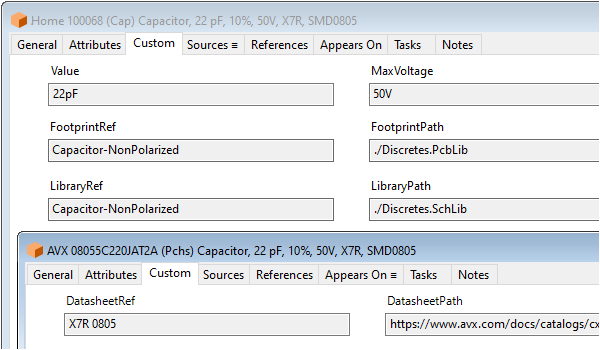
After these custom attributes are added to the part type template, you can create a few components for testing (in the diagram: home part 100068 is sourced from partner AVX).
The PDXpert database contains many objects, but only public views (with aView suffix) and user-defined views (with a My prefix) remain stable from one release to the next. Queries cannot use any database tables or private views (which have a _View suffix).
Custom attributes appear as dynamic columns within the public PDXpert views, alongside the standard columns like Owner, Number, Type and Description.
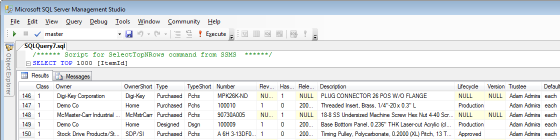
Use SQL Server Management Studio, Microsoft Access, or any ODBC client to browse the public views. In particular, examine the publicSourceItemMasterView, which is derived from the more basic public ItemMasterView part & document list. The SourceItemMasterView is a side-by-side grouping of your company-defined parts (and documents), along with up to 3 qualified sources. All items include columns for the custom attributes.
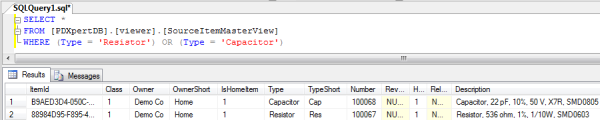
Public views in the PDXpert database have a comprehensive set of columns. For CAD applications, you'll only need to include columns that are related to part identification, CAD application support, and possibly supplier data. The test parts can be viewed using this query:
SELECT *
FROM [PDXpertDB].[viewer].[SourceItemMasterView]
WHERE ([Type]='Resistor' OR [Type]='Capacitor')
SeeSQL Server Query Fundamentalsfor more details on how to construct your queries.
Do not use SELECT * in your actual queries. Always specify the exact columns required.
Never attempt to create new records, or update or delete existing data, using SQL statements. Use only SQL SELECT statements to read data.
You can build your user-defined views on the test SQL SELECT query (above).
Depending upon your choice of access methods, these statements will be saved in Access as queries or in SQL Server as user-defined views. If you're saving SQL Server views within the PDXpert database, you'll create a new member of the Views collection within the PDXpert Collection Explorer, and name your view beginning with the characters My (as in MyReleasedParts).
For example, here's a SQL Server viewMyResistors that references the PDXpert public view SourceItemMasterView. It selects a subset of standard and custom attribute columns of parts ([Class]=1) with Type='Resistor' from the default company ([IsHomeItem]<>0). It also selects up to two sources using display name ([OwnerShort_n]) and part number ([Number_n]). Results are sorted by part number: ORDER BY [Number]
SELECT
[Number]
,[Type]
,CAST([Description] AS nvarchar(250)) AS [PartDescription]
,CAST([Value] AS nvarchar(250)) AS [Value]
,[Tolerance] AS [Tolerance]
,CAST([Symbol] AS nvarchar(250)) AS [Symbol]
,CAST([Footprint] AS nvarchar(250)) AS [Footprint]
,CAST([Datasheetref_1] AS nvarchar(250)) AS [Datasheet]
,[CostPerUnit] AS [Price]
,[OwnerShort_1]
,CAST([Number_1] AS nvarchar(250)) AS [Number_1]
,[OwnerShort_2]
,CAST([Number_2] AS nvarchar(250)) AS [Number_2]
FROM
[viewer].[SourceItemMasterView]
WHERE
[Class]=1 AND [IsHomeItem]<>0 AND [Type]='Resistor';
Calculated values rename the cost and datasheet columns, and truncate any excessively-long description to 250 Unicode characters. You may need to make other calculations, apply filters to select only released parts, or convert data types.
Note the CAST(... AS nvarchar(250)). Some text fields in the PDXpert database can be larger than an ODBC client can handle. If you see a column result with a warningWIDEMEMO or MEMO, or an empty column where you expect text, then use the CAST( ) statement to constrain the field to a compatible size. Or, simply CAST( ) every string. If your ODBC client is Access, you can convert from within Access using the CStr( ) function.
Do not use an ORDER BY clause; your ODBC client should sort data search results. According to Microsoft, theORDER BY clause is not valid in views unless the TOP clause is also specified.
If the part type Resistor is always a home part, then simplify the filter toWHERE [Type]='Resistor'.
The user-defined view MyCapacitors is similar, although you'll use [rating] instead of[tolerance], and theWHERE clause will substitute[Type]='Capacitor'.
You've created your part types and defined their custom attributes, and designed the queries to extract your component data.
You'll now connect OrCAD CIS to the selected ODBC data source. For details, refer to theOrCAD CIS Users Guide topic "Setting up the ODBC data source".
After the connection has been established, create a configuration (.DBC) file as described in the OrCAD CIS Users Guide topic "Creating a configuration file".
To export your design's BOM to PDXpert, seeConfiguring OrCAD Capture CIS to export the BOM.
Your queries will need to be reviewed, and possibly repaired, if you make changes within the PDXpert collections. For instance, the example SQL statement will fail if you remove a custom attribute or rename the Resistor. Make changes to your PDXpert collections cautiously to minimize reworking your user-defined views.
Finally, it bears repeating that your SQL queries must only extract data using SELECT statements. Do not attempt to update or delete data within the PDXpert database.
Access, Excel and Microsoft are trademarks or registered trademarks of Microsoft Corp. Cadence and OrCAD are registered trademarks of Cadence Design Systems, Inc.
This application note was relevant to the PDXpert software release that was current at time of publication. Product changes since that time may affect its utility. We'd be happy to assist you in assessing the applicability of this note to your situation.