
PDXpert PLM Software
Install Guide
PDXpert application folders and files
These links provide the name and location of all PDXpert files that are installed on the server computer and client workstations. The releases in this list are recent milestones. Similar information is available for earlier and interim public releases, as well as beta releases; contact us for assistance.
- PDXpert release 17.0.4008.6
- PDXpert release 16.1.3304.6
- PDXpert release 16.0.3226.5
- PDXpert release 15.0.3014.5
- PDXpert release 14.0.2781.5
- PDXpert release 13.0.2614.5
- PDXpert release 12.2.1230.4
- PDXpert release 12.1.31577.4
- PDXpert release 12.0.31408.4
- PDXpert release 11.2.31270.3
- PDXpert release 11.1.30966.2
- PDXpert release 11.0.30620.2
- PDXpert release 10.3.30489.2
- PDXpert release 10.2.30167.2
- PDXpert release 10.1.30074.2
- PDXpert release 10.0.29600.2
- PDXpert release 9.3.27875.554
- PDXpert release 9.1.26489.546
- PDXpert release 9.0.25712.543
- PDXpert release 8.1.25010.539
- PDXpert release 8.0.24454.536
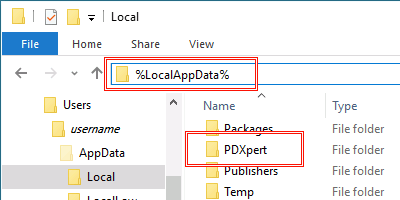
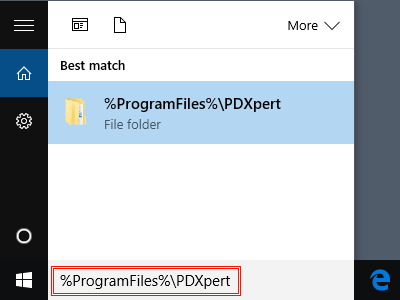
Some file paths include references to "environment variable" locations such as the%ProgramData% folder. Windows expands these variables into actual file paths as needed.
To locate an environment variable folder, do one of these:
Open File Explorer and type the value into the address bar and then press the Enter key.
Enter the value into the Windows Start menu's search box and then press the Enter key.
The PDXpert Services and the PDXpert Application Server application log files contain a record of normal and unusual events. The target files are created only on the computer where the PDXpert Application Server has been installed.
Using the PDXpert Application Server:
- Open the PDXpert Server console.
- On the Manage tab, click on theZip and Save Log Files button, and save the file to a convenient location.
If the PDXpert Application Server console can't be opened or is unresponsive, find the log files.
- Target files: PDXpert.Service.log and PDXpert.Server.log
- PDXpert environmental folder
- Recent releases: %ProgramFiles%\PDXpert\PDXpert PLM\Logs
- Older releases: %ProgramFiles%\PDXpert\Logs
To obtain a copy of the log files:
- Locate the target log files folder in Windows Explorer (described above).
- In Windows Explorer, right-click the log files' folder and selectCopy from the context menu.
- Right-click on an open area of your Windows Desktop and select Paste from the context menu.
- Right-click and select Send to > Compressed (zipped) folder to create a Logs.zip file.
The PDXpert client log file contains a record of normal and unusual application events. The client target file is created only on a workstation with the PDXpert client installed.
Using the PDXpert PLM client application:
- Open the PDXpert PLM client application.
- On the Help menu, select theTechnical Support... command.
- On the Technical Support window, click on theZip and Save Log Files button, and save the file to a convenient location.
If the PDXpert PLM client application can't be opened or is unresponsive, find the log files.
- Target file: PDXpert.log
- XP environmental folder: %AppData%\PDXpert\Logs
Vista/7/8 environmental folder:
- Recent PDXpert releases: %LocalAppData%\PDXpert\Logs
- Older PDXpert releases: %AppData%\PDXpert\Logs
To obtain a copy of the log files:
- Locate the environmental folder in Windows Explorer (described above).
- In Windows Explorer, right-click the log files' folder and selectCopy from the context menu.
- Right-click on an open area of your Windows Desktop and select Paste from the context menu.
- Right-click and select Send to > Compressed (zipped) folder to create a Logs.zip file.