
PDXpert PLM Software
Install Guide
Connecting Microsoft SQL Server Management Studio
Last update 2020-10-23
The PDXpert system setup software installs SQL Server Express LocalDB orSQL Server Express Edition. You may have installed a more capable edition, such as SQL Server Standard Edition.
Do not add your own table, view, stored procedure, or other resource in the PDXpertDB database. During an upgrade, PDXpert may drop or update tables, change stored procedures, or make other changes; it then clears and rebuilds all views and members of the Views collection. Make a separate database to hold your own objects.
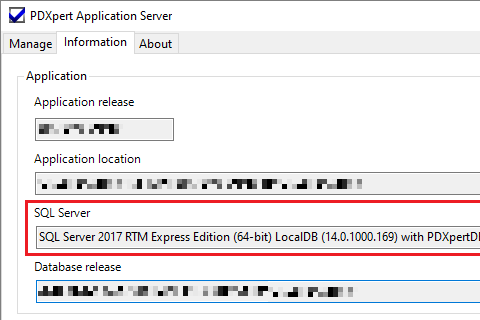
The PDXpert Server application identifies the SQL Server edition and version on the Informationpage. This is shown within the Application group of controls, in theSQL Server box.
Make special note if you see LocalDB in this information.
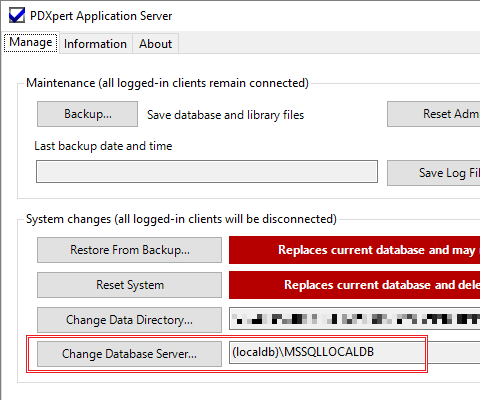
Go to the Manage page to see the SQL Server instance name. This is shown next to the Change Database Server… button:
SQL Server LocalDB provides a robust set of database functions to a single application — in this case, the PDXpert system. LocalDB is both simple and secure, but also quite restricted. SQL Server Management Studio (SSMS) offers more value when used with SQL Server Express, Standard or Enterprise.
- SQL Server LocalDB does not support remote connections, and is visible only to SSMS installed on the same computer.
- The PDXpert server loads its PDXpertDB database into the (localdb)\MSSQLLocalDBautomatic instance, which runs under the LocalSystemaccount.
After the PDXpert system is installed, the computer may require restarting before SSMS can see LocalDB instance.
Windows users who are members of the [BUILTIN\Administrators]group can connect SSMS to the LocalDB instance. This group has permission to use theRun As Administrator command.
The PDXpertDB database must be manually attached in SSMS.
If your system uses the default \ProgramData\PDXpert\Data folder for the system data directory:
The PDXpertDB database will be attached with read-only access. For read-write access,change the data directory to a less restricted folder before attaching the database. If the data folder is changed after attaching, you must detach the database and then attach it again to allow read-write access.
Windows hides the \ProgramData\PDXpert\Data folder that contains the PDXpertDB.mdf file. Use Windows File Explorer to allow viewingHidden items so that the database file can be seen and selected in SSMS.
The PDXpert Server service must be stopped before attaching or detaching the PDXpertDB.mdf file to the MSSqlLocalDBinstance. Users must exit their PDXpert client before stopping the service. If prompted, the PDXpert Filter Service can be stopped.
To connect SQL Server Management Studio (SSMS) to the LocalDB system database:
Confirm that the following have been addressed:
Windows has been restarted at least once since the PDXpert Server was installed.
No users are currently in PDXpert, and all PDXpert clients are closed.
The PDXpert Server service is stopped.
The default \ProgramData folder is not hidden; or, the data directory has been changed to a less restricted location.
Open SSMS: right-click the application icon, and select using the Run As Administrator command. If you're not an administrator, enter the account credentials of an administrator.
On the Connect to Server window, connect to the default instance:
- Server type:Database Engine
Server name: (localdb)\MSSQLLocalDB
For SQL Server 2012 Express LocalDB, use (localdb)\v11.0
- Authentication:Windows Authentication
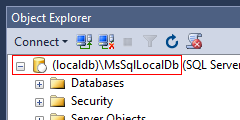
After SSMS connects, in the Object Explorer: right-click the Databases node and select the Attach...menu command.
Locate and select the PDXpertDb.mdf file.
Restart Windows to start the PDXpert Server service. Or, in the Administrator Tools > Services window:Start the PDXpert Server service. Do not start the PDXpert Filter Service; it is started by the PDXpert Server service only when needed.
For more information:
- SQL Server Express LocalDB Reference Topics
- Command-Line Management Tool: SqlLocalDB.exe
- SqlLocalDB Utility
For improved security, the PDXpert server assigns a random strong password to SQL Server's defaultsa account. You will not be able to log into the PDXPERT database instance under thesa account.
Open SQL Server Management Studio.
On the Connect to Server window, connect to the default instance:
- Server type:Database Engine
- Server name: as shown on the PDXpert Application Server's Manage page
- Authentication:Windows Authentication
If you need remote access, create your own administrator and user accounts.
SQL Server Express LocalDb may be installed as the client-side "local views" cache, principally for CAD applications.
To connect to the PDXpert network client's local views database:
Close the PDXpert client application; this also stops the instance service.
If you have client applications, such as CAD, using the local named instance, close those applications.
Open a new SQL Server Management Studio application instance: right-click the application icon, and select using the Run As Administrator command. If you're not an administrator, enter the account credentials of an administrator.
On the Connect to Server window, connect to the named instance:
- Server type:Database Engine
Server name: (localdb)\.\PDXpertLocalShared
If using the server's local client (not recommended), try Server name: (localdb)\MsSqlLocalDb
- Authentication:Windows Authentication
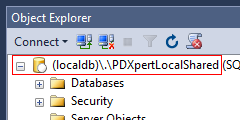
Use the LocalDB instructions, above, for attaching the database.