PDXpert PLM Software
Install Guide
Installing PDXpert 7 for typical environments
This setup process is for those who want to install PDXpert software on a reasonably current computer, without any special considerations. Depending on your computer's configuration, the process takes roughly 15 minutes, principally for installation of Microsoft SQL Server.
These instructions are for an obsolete PDXpert release.If you're installing PDXpert release 8.0 or higher,use these instructions.
You must have administrator rights to your computer, and be the only user logged into Windows.
- Verify that your computer meets thePDXpert software's hardware and software requirements.
- Visit the Microsoft Windows Update service (https://www.update.microsoft.com) to ensure that all High-Priority Updates have been installed on your computer(s).
If you have not yet obtained the PDXpert system installer,register and download the setup file now.
Save the PDXpert system installer to your computer. Do not run the installer directly from your browser. An interrupted connection may cause the installation process to fail.
Run the PDXpert System installer on one computer. The PDXpert Application Server and PDXpert PLM client are matched to your 32b/64b Windows.
PDXpert 7.5 (and earlier) installs SQL Server 2005 Express, which is not supported on Windows 8 or Windows Server 2012. To use a specific SQL Server version (like Standard Edition or SQL 2012), or if you're installing on Win8 or Server 2012, then readCustom installation: SQL Server before running the PDXpert Server installer.
- If your computer does not already have Microsoft .NET 4, it will be downloaded from the Microsoft website and installed.
- If you have not installed aMicrosoft SQL Server instance for PDXpert's use, then SQL Server Express will be downloaded and installed.
The default account user name is Admin and the account has ablank password.
If you're not familiar with PDXpert operation, start byviewing these tutorials.
The server upgrade automatically installs the PDXpert client on your server computer.
If you use more than one computer with your PDXpert system, then install the PDXpert client application on each workstation computerafter the PDXpert server has been installed.
Do one of the following:
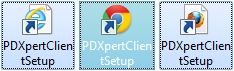 APDXpertClientSetup browser shortcut was copied onto the server's Windows Desktop during the PDXpert Application Server's installation. Copy or email thePDXpertClientSetup shortcut to the client computer, and then open it in that computer's browser. The actual icon will depend on the server's default browser.
The link is http://machine:48084/client/setup wheremachine is the server computer's name or IP address. If the PDXpert Application Server is installed on, say, PLMSERVER then the link is http://PLMSERVER:48084/client/setup
Save the PDXpert client installer from this website's download page, and then run it.
In releases before PDXpert 8.0, the PDXpert client application is installed into the Windows "all users" profile.
If you're installing PDXpert for the first time, you won't need a software license registration key. After you start the PDXpert client, enter your company name in theSoftware License Key window.
Your initial trial period is 3 weeks, and you cancontact us to extend the period.
Load the license key file as described in this PDXpert help topic.