
PDXpert PLM Software
On-line Help Guide
This help topic describes the current PDXpert PLM release. Earlier releases may be different. To view your release's version of this topic, open PDXpert and press the F1 key or select the Help menu.
Modify a collection member
Other users should not be using the system while you're working. Close all item records in your workspace before you begin. Close the PDXpert client and start it again when you've finished.
Open the collection and locate the existing member.
Open the member by double-clicking, or select Open Memberfrom the context menu.
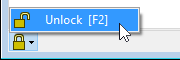
You may be permitted to change certain properties of a collection member. To modify a member's properties, press your keyboard's F2 key, or select theUnlock icon in the status bar at the lower left corner of the window, or select the Edit ➔ Unlock Objectmain menu.
Edit the member attributes.
Do one of these to save your changes:
Menu: Item ➔ Save
Keyboard: Ctrl+S
Selecting the Lock icon in the status bar (or the F2 key)
Menu: Item ➔ Close
Every collection requires one default member. The default member must be active.
If you want to make the current default member inactive, first set another active member as the collection's default.
To set a member of the collection as the default member:
- Close all members of the collection.
- In the Collection Explorer, select a collection member that you want to set as the default.
- Right-click to open the context menu, and select Set as Default. The member name becomes bold.
Setting the default member of the Persons collection is the same assetting the Super Administrator.
The default member of the Organizations collection cannot be set here. It is set byimporting the software license key.
2062