
PDXpert PLM Software
On-line Help Guide
This help topic describes the current PDXpert PLM release. Earlier releases may be different. To view your release's version of this topic, open PDXpert and press the F1 key or select the Help menu.
Search for items
The Item Explorer's search works very similar to your favorite web search engine: enter what you want, and PDXpert will show records ranked with most likely results higher in the list. When you provide more information in your query, the top results are more accurate.
If the Item Explorer is not shown, select the Item Explorer menu item from the Window menu.
- Click on Search.
Enter the search terms most likely to uniquely identify an item, just like a web search. For instance, you can use an item number, words in the item's description, the item's type, the owning organization, release status, or custom attribute values.
You can improve results by including special commands, filters and operators. See the Use search commands help topic.
Click on the search
 button to start the search.
If your results do not include the items that you want, try using different terms.
An item in the results can be opened, or used for drag-and-drop. You can select more than one item.
Results are ranked according to their relevance to the search terms. Matching item numbers, descriptions and other data shown on an item's General list usually rank higher in the results. Some returned items that match fewer search terms are listed lower on the results list. Items with the same rank are shown in the order they're found.
To optimize workstation and network performance, search results are limited to about two thousand records. If your search is very general — say, part or1* — then the results may not contain your item. When a search finds only items with low rank, the system can't choose the most useful, and shows nothing. By using better search terms, you'll get more useful results, and faster.
The column abbreviations are managed in these collections:
Owner: Organizations collection
Type: Document Types, Part Types,Change Forms collections
Release: Item Lifecycle Phases collection
Use the buttons above the search textbox to reduce the number of rows returned in the search results. An unselected button  hides the matching items, and a selected button shows the matching items.
For example, these settings hide canceled parts and canceled documents in the search results.
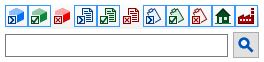
Hide results buttons:
- Pending parts
 Released parts
 Canceled parts
 Pending documents
 Released documents
 Canceled documents
 In-work change forms
 Released and completed change forms
 Canceled and rejected change forms
 Items owned by the home organization
 Items owned by partner organizations
The results show items that meet your search criteria, but you can open an item only when you have the correct security permissions. These permissions are determined by the system administrator, who specifies:
- your Role, which grants access to specified item classes and release status; and
- whether you've been denied access in the Product Family, which is added to some items.
It takes a few moments for a saved item to be indexed and included in search results. Items with custom attributes need more time to index.
File contents are indexed using Windows Search file system plug-ins that have been installed on the server computer. Based on system load and file size, there may be a noticeable delay before a file's content is included in search results. If a file attachment doesn't have a matching filter, then its content isn't included in your search results.
See the Tools menu ➔ Index Status help topic.
1012