
PDXpert PLM Software
On-line Help Guide
This help topic describes the current PDXpert PLM release. Earlier releases may be different. To view your release's version of this topic, open PDXpert and press the F1 key or select the Help menu.
View a collection
If the Collection Explorer is not shown, select theCollection Explorer menu item from theWindow menu.
If necessary, click on Collection Explorerto bring the Collection Explorer to the front.
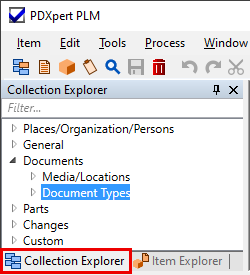
Navigate to the collection of interest. If necessary, expand a collection section (for example, the Documents section) by clicking on the group's ▷ expansion arrow.
Select a collection within the section by clicking on it (for example, the Document Types collection).
You can show members of the collection by clicking on the collection's expansion icon.
The default member is shown as bold, and is often used as the starting member on new items.
An inactive member is shown as dimmed.
If the collection allows member abbreviations, they're shown in parentheses:Member name (Abbrev).
Use the context menu to add new members and refresh the list from the database.
Select an individual collection member, and right-click to open the context menu. With appropriate permissions, you may:
Set the member as the default member.
Delete the member, if it's not in use by a different collection member or an item record.
To quickly find a collection member, enter its name into the Filter… box. Matching members are shown in the tree. A collection member can also be filtered by its abbreviation, display name or material CAS, which is shown in parentheses, likeAssembly (Assy).
2063