
PDXpert PLM Software
On-line Help Guide
This help topic describes the current PDXpert PLM release. Earlier releases may be different. To view your release's version of this topic, open PDXpert and press the F1 key or select the Help menu.
Use the Report/Export Wizard
Standard reports are available on many of the application's context menus. The Report/Export Wizard exports data and prints reports using theTransforms collection.
To use the Report/Export Wizard:
Open the Tools menu and selectReport/Export Wizard... When theReport/Export Wizard tool opens:
If the transform is an export file, then the Wizard exports your data in a standard delimited text format, such as CSV or XML.
Select a dataset to export from the list ofTransforms collection members. Click the Next button.
Some exports may let you select items to include in the report. From the Item Explorer Search orRecent list, drag an item to be included in the XML export and drop it onto theReport/Export Wizard panel.
Click on the Finish button. TheSave As dialog opens, and you can name the file and select the folder where the table-formatted file is saved. Select one of the file formats from theSave as type: dropdown list, and then click the Save button.
If the transform is a formatted report, then the Wizardopens a report that can be printed or exported as an Adobe Reader, Microsoft Excel or Microsoft Word file.
Select a report from the list of Transformscollection members. Click the Next button.
Some reports may let you select items to include in the report. From the Item Explorer Search orRecent list, drag an item to be included in the XML export and drop it onto theReport/Export Wizard panel.
Click on the Finish button. TheSave As dialog opens, and you can name the file and select the folder where the table-formatted file is saved. Select one of the file formats from theSave as type: dropdown list, and then click the Save button.
When the Report/Export Wizard tool is done, the form closes.
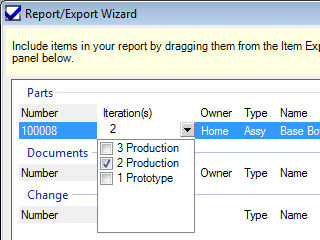
Transforms may be designed to export one or more selected iterations. You can choose the iteration by opening the Iteration(s) dropdown, and marking the appropriate checkbox. If the transform is designed to allow more than one revision, multiple checkboxes can be marked.
1037