
PDXpert PLM Software
On-line Help Guide
This help topic describes the current PDXpert PLM release. Earlier releases may be different. To view your release's version of this topic, open PDXpert and press the F1 key or select the Help menu.
Files (item)
These controls are visible only when the Show Files tab checkbox is marked on the relatedDocument Types,Part Types, orChange Forms collection member.
PDXpert can directly operate on the files that define a product. You tell PDXpert where the file is, and whether you want PDXpert to copy it into the data library or just point to it as an external browser link.
All commands for file management are on the Tools ➔ Filessubmenu, as well as on each list's context menu.
There are 3 general categories of files: closely managed revision files, item attachments saved in the system library, and external links to resources that PDXpert doesn't manage.
In a standard PDX package, part/document revision files and change form files are included (isFileIn="Yes"). Item files attached to documents and parts are identified in the PDX package but are not included (isFileIn="No").
Links to external resources are included in a PDX package. Some users may not see the linked resource if, for example, the link points to a private server on your local network.
All files' Notes are included in PDX attachment descriptions.
Arevision fileis related to a particular technical revision of a part or document, and is permanently saved within the data library when the related item iteration is released by a change form.
Objects that don't have revisions (such as Change Forms andOrganizations) don't have revision files.
Because a revision file is identified by revision and not by lifecycle, PDXpert uses the accepted term revision file even though the file is attached to an iteration (revision + lifecycle) record. A new iteration that simply modifies the record's lifecycle usually copies its revision files forward with the same technical content. The file's Notes text is tied to the file, and is shown on all iterations that use that file.
Anitem fileisn't as tightly controlled as a revision file. It can be added, changed or deleted throughout the item's life regardless of any iteration's release status.
An item file can be saved within the PDXpert server's library, or saved as an external link.
- An item attachment saves an exact copy of a file. These may be background sketches, customer notes, vendor quotes or production records.
- An external link is a resource on the local network or internet that PDXpert doesn't copy or control. It may be updated, moved or deleted without PDXpert knowing. Use an external link when you want to point to the latest version of "background information" data, such as a supplier's web page.
These commands are shown on the file context menu. Some commands are shown only for a revision file or for an item file.
 View File...
- Copies the file from the server to a temporary location on your computer, and asks Windows to open the copy. See the Viewing a file help topic.
 Copy Library File...
Copies the file from the server to a location that you specify. See the Copy a file help topic.
 Add New File...
Adds a file to the Revision Files or Item Fileslist. See the Attach a revision file orAttach an item file help topics.
- Add New External Link...
Lets you specify a link to an external resource, such as a website or network file. See the Attach an external link help topic.
- Add Notes...
Add a brief comment about the file.
- Permissions...
Sets permissions for viewing and managing the file.
 Check Out and Lock...
Copies a revision file to a location you specify, and locks the file so other users can view and copy the file, but can't check it out. See the Check out a file help topic.
 Check In and Free...
Replaces the checked-out revision file from a location that you specify, and frees the file lock so that other users can check it out. See theCheck in a file help topic.
- Free File Lock
Removes a checked-out file's lock without replacing the file with an updated version. See theFree a file lock help topic.
- Delete File
Deletes the selected file from the list.
- A revision file can be immediately deleted if it's not on an earlier released iteration. Otherwise, it can be marked for removal after processing an executing change form. See theRemove a revision file help topic.
- An item file or external link can be deleted without processing a change form. See theRemove an item file or external link help topic.
Microsoft Windows provides good cross-platform file support. However, archive files –.zip, .7z, .rar, and similar general purpose lossless compression formats – should be made only on a Windows machine.
All files, including compressed files, are copied unchanged into the PDXpert library. If a compressed file is later included in a PDXZ backup file or a PDX package, Windows may try to optimize files that can be decompressed by the .NET System.IO.Compression namespace. If any file was compressed on a non-Windows platform or downloaded from the internet, this Windows optimization may create an invalid PDXZ file or PDX package without warning.
Backup: If you're unsure about the source of any compressed file attachment, then do not use the .PDXZ file format. Instead, use the Database without Library (*.bak) backup format, and save the Library folder files separately.
PDX package: Before attaching a non-Windows compressed file, decompress the archive's content and then re-compress it on a Windows machine. This applies only to revision file attachments; a PDX package does not include item file attachments.
Windows may block unknown files that are downloaded from sources outside your network. Windows sets a hidden NTFS Alternate Data Stream (ADS) that must be changed.
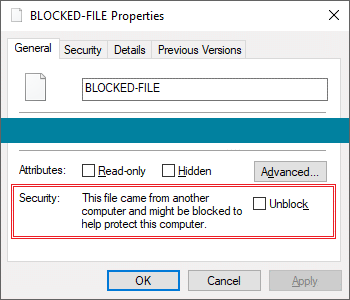
Before attaching a file to a PDXpert item, open the file's Properties window to see that the file is unblocked. Administrator permission may be needed to unblock a file.
If you're careful about downloads and have a good antivirus program, you can configure Windows to stop blocking files using a group policy or registry setting. Search the web for disable windows file blockingOr, save the file to a non-NTFS drive (e.g., FAT) which doesn't support ADS. For more technical discussion, read about the IAttachmentExecute Windows API and IZoneIdentifier interface.
Related topics
1056