
PDXpert PLM Software
On-line Help Guide
This help topic describes the current PDXpert PLM release. Earlier releases may be different. To view your release's version of this topic, open PDXpert and press the F1 key or select the Help menu.
Run a report
Reports are opened using the context menu.
On item (document, part, change) forms, an Item Reportshows the complete contents of every page on an item; the Tab Report includes only the data on the currently-selected page.
Multi-level BOM reports may include other relational data, such as the BOM with Sources and BOM with References reports. These reports show the BOM parts' immediate (first-level) source or reference items, but do not recursively show non-BOM items such as source parts on sources or references, BOM parts on sources or references, or reference items on sources or references. These unusual structures can be handled in Transforms.
Within an item form or on a Collection Explorer member node, open the context menu, and select one of the listed reports (typically the last group of commands). The report is shown in a new form.
To open a context menu, click the secondary (usually right) mouse button while over an object.
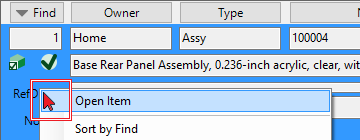
To open the context menu in a list, such as the BOM: Markup list, right-click on a row background.
PDXpert's standard reports and exports are listed first, followed by optional reports or exports specified byTransforms collection members.
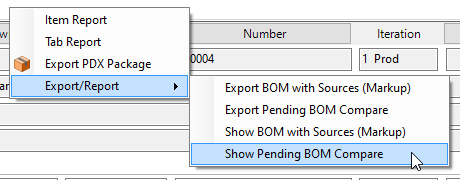
To show the results of a data transform in the Export/Report ⏵ submenu, its XML code must use a correct context location, such as<context location="BillOfMaterialsMarkupList" part="true" />. See the Transforms: <context /> element help topic.
The report window has the following controls on the toolbar (see picture below):
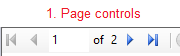
You can move between report pages using the page controls.
- If you want to print the report, click the printer icon. If you prefer to export the report, select one of the formats from the dropdown list.
- Use the zoom dropdown control to see the entire report or to see details.
You can search for text by typing it into the textbox, and clicking the Find button.

1149